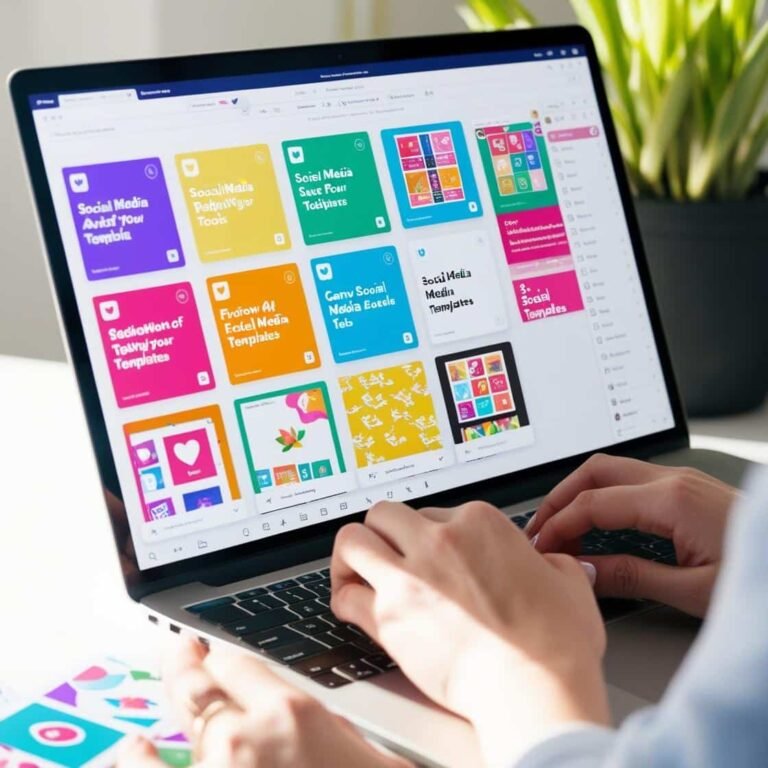
Introduction to Graphic Design Tools: Getting Started with Canva

Graphic design is an essential skill in today’s digital world, whether you’re creating visuals for a website, social media, or a personal project. But you don’t need to be a professional designer to create stunning graphics. Tools like Canva have made graphic design accessible to everyone, regardless of skill level. In this beginner’s guide, we’ll introduce you to Canva, a user-friendly design platform that’s perfect for creating logos, social media posts, banners, and more.
What is Canva?
Canva is a free, web-based design tool that allows anyone to create professional-quality graphics with ease. Whether you’re a beginner or a seasoned designer, Canva’s intuitive drag-and-drop interface makes it simple to design stunning visuals, even if you have no prior design experience. Canva offers a wide range of templates, fonts, images, and elements, so you can quickly bring your ideas to life.
Why Choose Canva for Graphic Design?
- Easy-to-Use: Canva is designed for beginners, so you don’t need any design experience to get started.
- Templates: Canva offers a wide variety of pre-made templates for different design needs, including social media posts, resumes, logos, presentations, and more.
- Collaborative: You can work on designs with others in real time, making it a great tool for team projects.
- Free and Paid Versions: While the free version offers plenty of features, Canva also has a Pro version with advanced tools, stock images, and brand kit options.
Getting Started with Canva
1. Sign Up for a Free Account
To begin, visit Canva.com and sign up for a free account. You can sign up using your Google or Facebook account or create a new account with your email address.
2. Choose Your Design Type
Once you’re logged in, you’ll be taken to Canva’s dashboard. Canva offers various design types, such as social media posts, presentations, posters, and more. To get started, select the type of design you want to create. For example, if you’re creating a social media post, you can select the “Instagram Post” option, which is pre-sized for that platform.
3. Explore Canva’s Templates
Canva has a huge library of pre-designed templates, making it easy to create professional-looking designs. To explore templates:
- Search Templates: Use the search bar to find templates for specific types of designs, such as “Facebook Post,” “Business Card,” or “Logo.”
- Filter by Category: Canva also lets you filter templates by category, such as “Marketing,” “Events,” or “Education,” so you can find the perfect starting point for your project.
Creating Your First Design
Let’s go through the steps of creating a simple graphic, such as a social media post, to get a feel for Canva’s tools.
1. Select a Template
Once you’ve chosen your design type, you’ll be presented with several template options. Select one that fits your style, and it will open in Canva’s editor.
2. Customize Your Design
Now, the fun part begins! You can start customizing your design:
- Text: Click on any text box to edit the text. You can change the font, size, color, and alignment. Canva offers a wide selection of free fonts to choose from.
- Images and Graphics: Use the “Elements” tab to add shapes, illustrations, icons, and photos. You can also upload your own images by clicking on the “Uploads” button.
- Colors: Change the color of text, shapes, and backgrounds using the color picker. Canva allows you to create your own color palette for consistency.
- Backgrounds: You can change the background of your design by choosing from Canva’s pre-designed backgrounds or uploading your own.
3. Positioning Elements
One of the best things about Canva is the ability to easily position elements. Canva automatically aligns your elements with smart guides, making sure everything is spaced evenly. You can drag and resize objects until you get the perfect look.
4. Save and Download
Once you’re happy with your design, it’s time to save and download it. Canva gives you multiple download options, including PNG, JPG, and PDF formats. You can also directly share your design to social media platforms or invite others to collaborate on the project.
Using Canva for Different Design Projects
Canva is versatile and can be used for a variety of design projects. Here are a few examples of what you can create using Canva:
1. Creating Logos
Canva is great for creating simple logos. You can start with a logo template and modify it by changing the text, colors, and icons. If you have a particular vision, Canva offers thousands of design elements to help you bring it to life.
2. Social Media Graphics
Whether you’re designing Facebook covers, Instagram posts, or Pinterest pins, Canva provides templates specifically tailored to each platform’s dimensions. You can create visually appealing graphics in minutes to promote your brand or personal projects.
3. Banners and Ads
Canva makes it easy to design banners and ads for websites or online campaigns. You can create eye-catching designs with bold text and imagery to attract clicks.
4. Presentations
With Canva, you can design stunning slides for presentations. The platform offers pre-made presentation templates with modern, professional designs that you can quickly customize to suit your style.
5. Print Materials
Canva also allows you to design print materials like brochures, business cards, and posters. The platform offers print-ready templates, so you can easily create professional-quality printables.
Tips for Beginners
- Keep it Simple: When starting out, try to keep your designs simple. Focus on a few key elements and let your creativity flow from there.
- Use Consistent Fonts and Colors: For a cohesive look, use consistent fonts and colors throughout your design.
- Take Advantage of Templates: Don’t be afraid to use templates as a starting point. They’re designed to be customizable, so you can make them your own.
Conclusion
Canva is an amazing tool that democratizes graphic design, allowing anyone to create professional-looking visuals without the need for expensive software or years of design experience. Whether you’re creating social media posts, logos, or banners, Canva makes it easy to get started and bring your ideas to life.
Next Steps
- Explore more design features, such as animations and infographics.
- Experiment with Canva’s Pro features for even more advanced tools and resources.
- Start working on your next design project, whether it’s a logo, social media graphic, or something else entirely.
With Canva, graphic design is no longer intimidating—it’s fun and accessible. So go ahead, unleash your creativity, and start designing today!