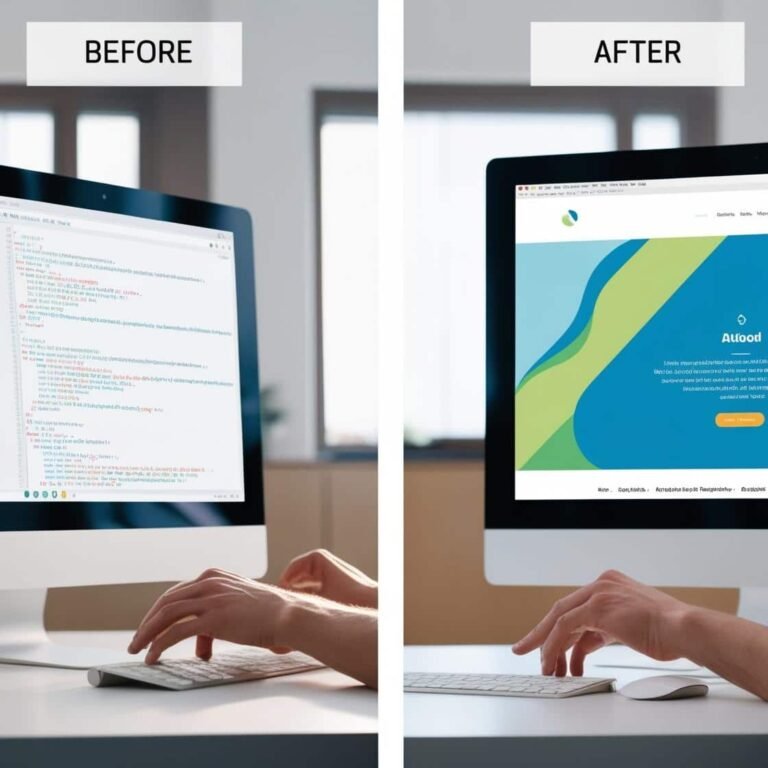
CSS Fundamentals: Styling Your First Website

When it comes to building a website, the content is important, but how it looks is just as essential. CSS (Cascading Style Sheets) is the language that makes your website look appealing. It gives structure to your web pages, defining everything from fonts and colors to the layout and spacing. If you’re new to web development, understanding CSS is key to making your first website stand out. In this tutorial, we’ll walk you through the basics of using CSS to add style to your webpage, focusing on essential concepts like colors, fonts, padding, and margins.
What is CSS?
CSS is a stylesheet language that controls the presentation of HTML elements on a webpage. It allows you to separate content (HTML) from its design (CSS). By linking a CSS file to an HTML document, you can style your website and make it visually appealing.
How to Include CSS in Your HTML
There are three main ways to add CSS to an HTML file:
- Inline CSS: Add CSS directly within HTML elements.
- Internal CSS: Include CSS within a
<style>tag in the head of the HTML document. - External CSS: Link to an external CSS file, which is the most efficient for larger websites.
Let’s focus on external CSS, as it’s the best practice for keeping your code clean and manageable.
Example of External CSS
- Create an HTML File (
index.html):
<!DOCTYPE html>
<html lang="en">
<head>
    <meta charset="UTF-8">
    <meta name="viewport" content="width=device-width, initial-scale=1.0">
    <title>My First Website</title>
    <link rel="stylesheet" href="styles.css">
</head>
<body>
    <h1>Welcome to My First Website!</h1>
    <p>This is a simple webpage styled with CSS.</p>
</body>
</html>- Create a CSS File (
styles.css):
/* This is the CSS file that will style your webpage */

body {
    font-family: Arial, sans-serif;
    background-color: #f4f4f4;
    color: #333;
    margin: 0;
    padding: 0;
}

h1 {
    color: #007bff;
    text-align: center;
}

p {
    font-size: 1.2em;
    text-align: center;
    padding: 10px;
}
Key CSS Concepts: Colors, Fonts, Padding, and Margins
Now that you know how to link a CSS file to your HTML document, let’s dive into the key concepts of styling your webpage.
1. Colors
CSS allows you to set colors for text, backgrounds, borders, and more. You can define colors in different ways: by name (like red), hexadecimal codes (like #ff0000), or RGB values (like rgb(255, 0, 0)).
For example, you can style the background color of your webpage or the text color of specific elements.
body {
    background-color: #f4f4f4; /* Light grey background */
    color: #333; /* Dark grey text */
}

h1 {
    color: #007bff; /* Blue color for the heading */
}
2. Fonts
CSS allows you to control the font style, size, weight, and family. You can use system fonts like Arial or import web fonts from services like Google Fonts for more variety.
To change the font family and size, you can use the font-family and font-size properties.
body {
    font-family: Arial, sans-serif; /* Use Arial font */
    font-size: 16px; /* Set default font size */
}

h1 {
    font-family: 'Helvetica', sans-serif; /* Change font for headings */
    font-size: 2em; /* Make heading text larger */
    font-weight: bold; /* Make the heading bold */
}
3. Padding
Padding is the space between the content of an element and its border. It creates room inside the element, making it visually appealing and preventing the text from touching the edges.
You can set padding for all sides of an element (top, right, bottom, left) individually, or you can set the same padding for all sides at once.
p {
    padding: 20px; /* Add padding around the paragraph */
}

h1 {
    padding-top: 10px; /* Add padding only to the top of the heading */
    padding-bottom: 10px; /* Add padding only to the bottom */
}
4. Margins
Margins are the space outside an element. While padding controls the space inside an element, margins control the space between elements. This helps with spacing out elements and creating a clean layout.
You can set margins on all sides of an element or individually for each side.
h1 {
    margin-bottom: 20px; /* Adds space below the heading */
}

p {
    margin-top: 30px; /* Adds space above the paragraph */
    margin-left: 10px; /* Adds space to the left of the paragraph */
}
Putting It All Together
Here’s a quick example of a styled webpage using the concepts we’ve covered:
HTML (index.html):
<!DOCTYPE html>
<html lang="en">
<head>
    <meta charset="UTF-8">
    <meta name="viewport" content="width=device-width, initial-scale=1.0">
    <title>My Styled Website</title>
    <link rel="stylesheet" href="styles.css">
</head>
<body>
    <h1>Welcome to My Stylish Website!</h1>
    <p>This is a simple webpage styled with CSS. Check out how we’ve used colors, fonts, padding, and margins!</p>
</body>
</html>
CSS (styles.css):
body {
    font-family: 'Arial', sans-serif;
    background-color: #f0f0f0;
    color: #333;
    margin: 0;
    padding: 0;
}

h1 {
    color: #007bff;
    text-align: center;
    font-size: 2.5em;
    margin-top: 50px;
    padding: 20px;
}

p {
    text-align: center;
    font-size: 1.2em;
    padding: 15px;
    margin-top: 20px;
}
Conclusion
CSS is an essential skill for web developers, allowing you to add style and personality to your website. By mastering basic concepts like colors, fonts, padding, and margins, you can create clean, well-designed webpages that are visually appealing and user-friendly. As you continue learning CSS, you’ll be able to explore more advanced techniques such as layouts, animations, and responsiveness, which will take your websites to the next level.
Now that you understand the fundamentals, you can experiment with your styles and start designing your own websites from scratch! Happy styling!